JSON Formatter
Paste your JSON below, click Format, and get clean, readable output instantly — no sign-up required. Invalid JSON is caught and reported with the line number so you can fix errors quickly. Learn how to format JSON →
What is JSON
- JSON (JavaScript Object Notation) is a lightweight text format used to represent structured data. It is both human-readable and machine-parseable, and is the dominant format for data exchange in REST APIs, configuration files, and inter-process communication.
When to use JSON
- Use JSON when you need a simple, interoperable way to serialize structured data for transmission or storage — particularly in web contexts where JavaScript is involved on one or both ends.
How the JSON formatter works
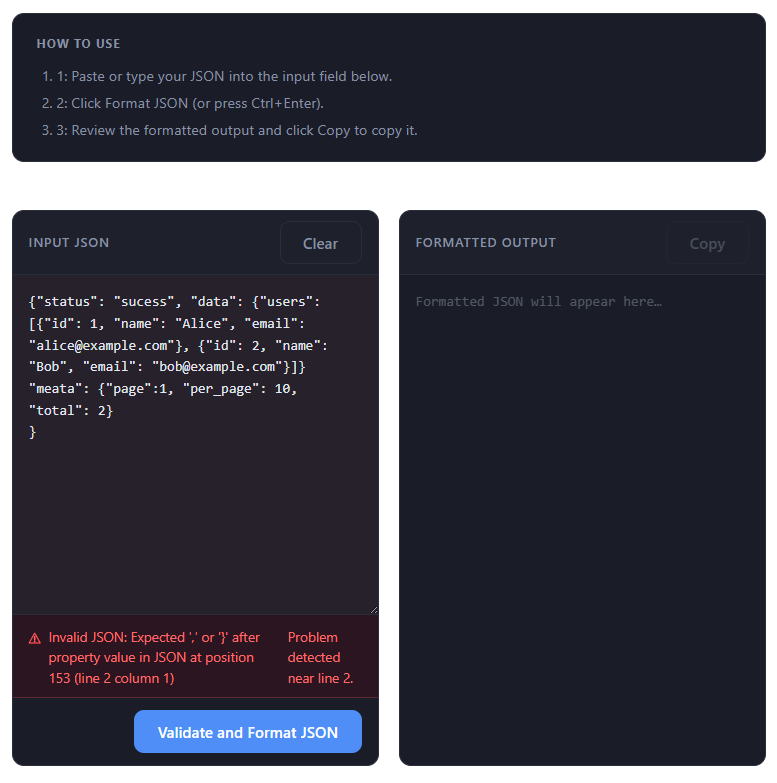
- The formatter parses the raw input as JSON (using the browser's built-in JSON.parse), then serializes it back with JSON.stringify using a configurable indent level. If parsing fails, the error is caught and the approximate line number of the problem is reported.
JSON in pretty format
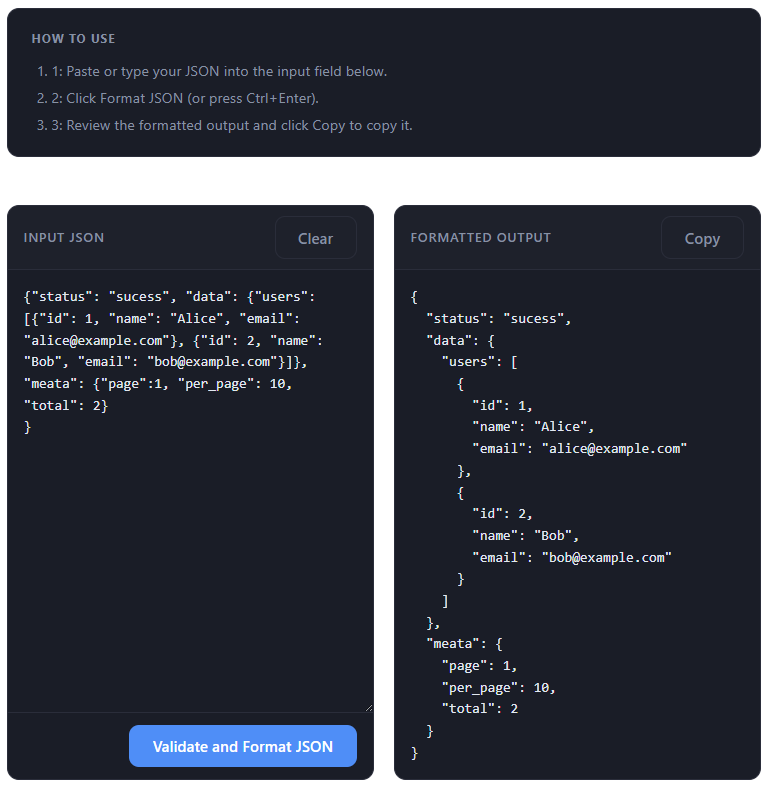
- Pretty-printed JSON inserts line breaks between key–value pairs and arrays, and indents nested objects and arrays. This makes the structure immediately visible without changing the data.
Useful when
- Debugging API responses that are returned as minified JSON.
- Reviewing configuration objects or data payloads before deployment.
- Spotting structural errors in JSON before they reach production code.
FAQs
- Q: Does formatting change the data? A: No — formatting only changes whitespace; all values and structure remain identical.
- Q: Can the formatter fix broken JSON? A: No — it reports the approximate line of the error but cannot repair malformed input.
- Q: What indentation is used? A: Two spaces, which is the most widely used convention for JSON.
- Q: Is the JSON processed on my device? A: Yes — all parsing and formatting runs in the browser; no data is sent to a server.
- Q: Why does the formatter report an error on a different line than I expect? A: JSON parsers often continue past an error before failing; the reported line is the best approximation the parser can provide.
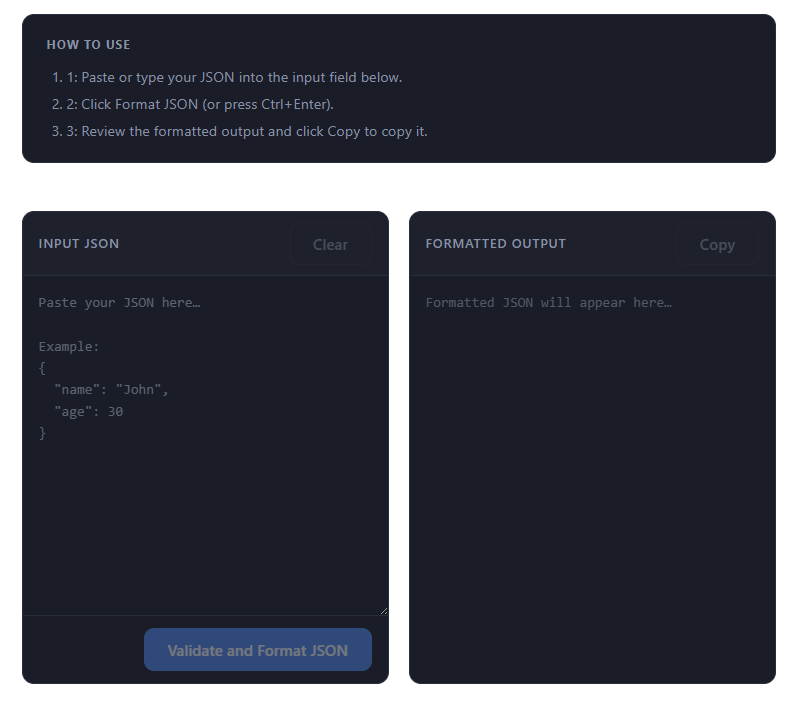
Paste or type raw JSON into the input panel.
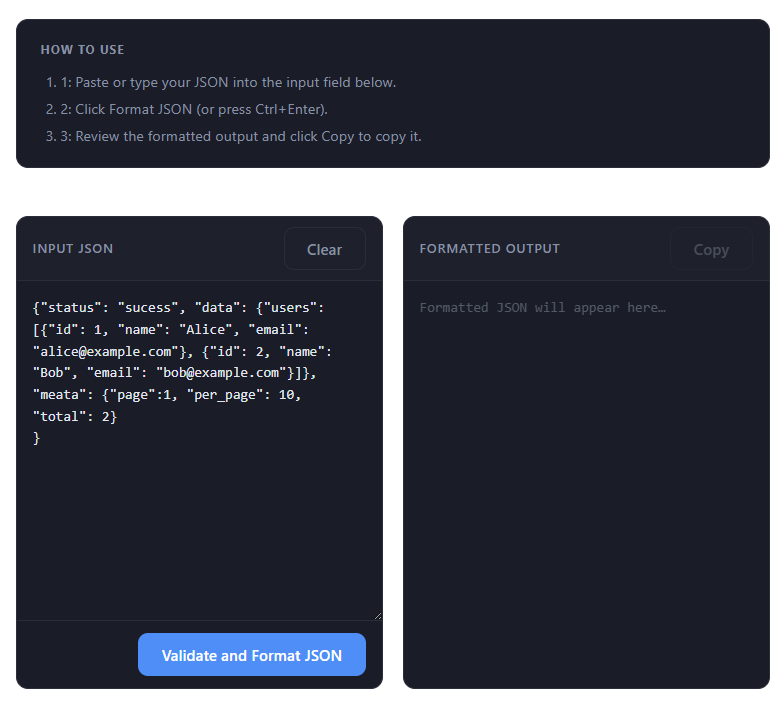
Click Validate & Format (or press Ctrl+Enter) to run the parser.
Review formatted output and copy or download as needed.
Fix any parse errors indicated by the error panel and reformat.
How to use
- 1: Paste or type your JSON into the input field below.
- 2: Click Format JSON (or press Ctrl+Enter).
- 3: Review the formatted output and click Copy to copy it.
Formatted JSON will appear here…
How to Read and Fix JSON Faster (A Practical Guide for Developers)
If you've ever worked with APIs, logs, or config files, you've seen messy minified JSON. Technically correct… but painful to read. That's where a JSON formatter becomes essential.
👉 In this guide, you'll learn how to turn messy JSON into readable structure, debug errors faster, and work more efficiently with API data.
📦 What Is JSON (Quick Refresher)
JSON (JavaScript Object Notation) is a lightweight data format used to exchange structured data between systems. It's used in APIs, backend services, config files, and databases. Machines love JSON — humans, not so much (when it's messy).
🔍 What Does a JSON Formatter Do?
A JSON formatter takes raw or minified JSON and adds indentation, organizes nested structures, and makes data readable. It doesn't change the data — only how it looks.
Before:
{"name":"app","features":["json","image","pdf"],"active":true}After:
{
  "name": "app",
  "features": [
    "json",
    "image",
    "pdf"
  ],
  "active": true
}
😵 Why Raw JSON Slows You Down
- 🔍 Hard to scan — nested objects become dense, confusing, and easy to misread.
- 🐞 Debugging becomes painful — one missing comma or bracket breaks everything and is hard to locate.
- ⏱ Wasted time — you spend more time reading structure instead of solving problems.
⚡ When You Should Use a JSON Formatter
- 🔌 API Responses — most APIs return minified JSON; formatting reveals structure immediately.
- 🐞 Debugging Errors — formatter + validator shows exactly where JSON breaks.
- ⚙️ Config Files — cleaner structure means fewer mistakes in .json settings.
- 📄 Log Analysis — formatting nested JSON blobs in logs helps spot issues quickly.
🧪 Common JSON Errors
- ❌ Trailing Comma —
{"name": "test",} - ❌ Missing Quotes on Keys —
{name: "test"} - ❌ Single Quotes —
{' name': ' test'} - ❌ Unclosed Brackets —
{"user": {"id": 1}
🪜 Step-by-Step: Format JSON Easily
- 📋 Paste your JSON
- ⚙️ Click Format
- 👀 Review structured output
- ❗ Fix any errors shown
- 📄 Copy clean JSON
🚀 Best Practices for Working With JSON
- ✅ Keep it valid — always use double quotes and match brackets correctly.
- ✅ Format before debugging — don't debug raw JSON; always format first.
- ✅ Use consistent indentation — 2 spaces is the most common standard.
- ✅ Avoid over-nesting — deep nesting is hard to read and hard to maintain.
- ✅ Validate early — catch errors before using JSON in code.
🧠 Technical Architecture & Client-Side Parsing Details
The JavaScript Parsing Engine & Abstract Syntax Trees (AST)
When a developer pastes raw strings into our system, the formatter activates the browser's native Javascript engine engine. First, `JSON.parse()` processes the sequence, converting characters into an in-memory Abstract Syntax Tree (AST) representing the dictionary hierarchy. Under the hood, this parsing engine maps structures, nested nodes, and lists in RAM. Next, `JSON.stringify(data, null, 2)` traverses the freshly constructed AST, emitting a clean, serialized string indented by exactly two spaces per hierarchy step.
BigInt Precision Loss & IEEE 754 Floating-Point Limitations
A critical technical challenge with standard client-side JSON parsing is number precision. JavaScript natively represents numbers as IEEE 754 double-precision floats, which are limited to a safe integer range of 53 bits (up to 9,007,199,254,740,991). When processing responses containing 64-bit identifiers—highly prevalent in Snowflake IDs, Twitter/X platform payloads, or transactional database headers—native parsing causes silent, devastating precision loss. High-fidelity integrations require custom parser revivers or specialized parsers to read large integer keys safely as raw BigInt sequences.
Zero-Server Sandbox: Maximum Information Privacy
Because formatting relies exclusively on local browser engines, no data payloads are transmitted over HTTP to remote servers. All AST mapping, JSON stringifying, and validation happen inside the local RAM heap. Pasting highly sensitive production logs, proprietary API keys, credentials, or customer database records remains 100% private, leak-proof, and secure.
🧰 JSON Formatter vs JSON Validator
| Feature | Formatter | Validator |
|---|---|---|
| Purpose | Improve readability | Check correctness |
| Fix errors | ❌ No | ✅ Yes |
| Output | Clean structure | Error messages |
Best workflow: Format → Validate → Fix.
📊 Structural Format Comparison (JSON vs JSON5 vs YAML vs XML)
| Data Format | Syntax Verbosity | Comments Supported? | Data Types Supported | Primary Use Case |
|---|---|---|---|---|
| JSON (RFC 8259) | Low / Strict | No | String, Number, Boolean, Array, Object, Null | REST API payloads, frontend-backend data transfer |
| JSON5 | Low / Flexible | Yes (// and /* */) | JSON types + NaN, Infinity, trailing commas | Configuration files, human-editable settings |
| YAML | Minimal (Whitespace) | Yes (#) | Complex (Anchors, Aliases, Custom Types) | CI/CD pipelines, Docker, Kubernetes configurations |
| XML | High (Heavy Tags) | Yes (<!-- comment -->) | Text (Requires schema for types) | Legacy SOAP APIs, RSS feeds, enterprise messaging systems |
⚡ Pro Tips
- 🔍 Format before logging large JSON
- 🧩 Break large JSON into smaller parts
- 📋 Copy only what you need
- ⚡ Use formatter + diff tool together
🔐 Is It Safe to Use Online JSON Formatters?
Most modern tools run directly in your browser and don't send data to servers. Still, avoid pasting API keys or sensitive production data.
❓ FAQ
Does formatting change my JSON data?
No — it only changes appearance, not content.
Can a formatter fix invalid JSON?
No — but it helps you see where the issue is.
What's the best indentation style?
2 spaces is the most common standard.
Why does my JSON fail to format?
Likely due to syntax errors, missing brackets, or incorrect quote style.
Why does JSON.parse() throw a 'SyntaxError: Unexpected token' on trailing commas?
According to the JSON specifications (including ECMA-404 and RFC 8259), trailing commas are strictly forbidden. The JSON syntax grammar expects another key-value pair or element immediately following a comma. When a bracket or curly brace is encountered instead, the parser fails because there is no element to match.
How does the browser allocate RAM when formatting massive JSON files (e.g., 50MB+ database dumps)?
Formatting raw JSON strings in the browser requires parsing the file into active virtual RAM. A 50MB JSON string can consume up to 300MB to 500MB of RAM once parsed because every key and nested value is allocated as an individual JavaScript object node. Since JavaScript garbage collection occurs asynchronously, processing massive dumps can temporarily spike memory usage or freeze the browser tab if it hits heap limitations.
What is the difference between RFC 4627 and the newer RFC 8259 JSON standards?
RFC 4627 was the original specification and required the top-level container of a JSON text to be either an Array or an Object. The newer RFC 8259 standard relaxes this, allowing any valid JSON value (such as a plain string, number, or boolean) to exist as a valid top-level JSON document on its own. Furthermore, RFC 8259 enforces UTF-8 as the mandatory default character encoding.
How do circular references (recursive objects) cause a JSON formatter to crash?
Standard serialization functions like native `JSON.stringify` perform a recursive depth-first traversal of the object tree. If an object references itself directly or indirectly, the tree traversal becomes infinite. To prevent complete system hangs, the browser's JavaScript runtime detects this infinite nesting loop and throws a 'TypeError: Converting circular structure to JSON' to crash the process gracefully.
What is BigInt precision loss and how is it prevented in advanced formatting?
Because JavaScript numbers are double-precision floats, integer values above 9,007,199,254,740,991 suffer from loss of precision. Parsing a 64-bit ID natively truncates the least significant digits. It is prevented by using a regex parser or a custom parser reviver that reads these numeric sequences as strings or natively as BigInt objects.
Working with raw JSON doesn't have to be frustrating. With a JSON formatter, you can read data instantly, debug faster, and reduce errors — one of the simplest tools that can significantly improve your workflow.