Image Crop
Select and crop a portion of your image. Choose from standard aspect ratios or set a custom one, rotate and flip as needed, then download the cropped result. Learn how to crop your image →
What is Image Crop
The Image Crop tool provides an interactive way to select and export a rectangular portion of an image. It offers zoom, rotation, and flip controls, aspect ratio presets for common targets (social, profile, banners), and a preview step so you can confirm the crop before downloading. All transformation and export operations are performed in your browser using an offscreen canvas; your original file does not leave your device unless you explicitly share or upload it.
How cropping works
After loading an image the editor displays a resizable crop overlay. You can drag the overlay to reposition it, resize using handles, or pick one of the provided aspect ratios for exact output dimensions. Zooming and rotation let you refine framing; flips mirror the image horizontally or vertically. When you click Preview or Download the selected region is rendered to an offscreen canvas with any transforms applied, and the result is exported as a PNG file for immediate download.
Presets and precision
- 1:1 (Profile) — Ideal for avatars and profile photos.
- 16:9 (Widescreen) — Useful for video thumbnails, banners, and widescreen presentations.
- 4:5 (Portrait) — A common format for social feeds and portrait-oriented content.
- Free — No constraints; crop to any dimensions you need.
Practical tips
- Use the aspect-lock to keep exact proportions when resizing the crop area.
- For pixel-perfect exports, set the desired output resolution after choosing the crop area, then preview at 100% if possible.
- If you need to crop many images the same way, note the preset values so you can repeat the process consistently.
Useful when
- preparing profile pictures or social media assets to exact dimensions.
- removing unwanted borders, background, or distracting elements from a photo.
- cropping a screenshot to a specific region for docs or presentations.
- quickly re-framing a photo without opening a desktop image editor.
Accessibility & privacy
Controls are keyboard accessible and sized for touch interaction; the preview dialog helps users of all devices confirm changes. Because cropping is performed locally, your images remain private unless you choose to upload them as part of a sharing workflow.
FAQs
- Q: Is my image uploaded anywhere? A: No — all cropping runs client-side in your browser. Your image never leaves your device.
- Q: What formats are supported? A: You can load any image format the browser supports (JPEG, PNG, WebP, GIF, etc.). The cropped output is always exported as PNG.
- Q: Can I undo a crop? A: Yes — simply adjust the crop selection and click Preview again to regenerate the output before downloading.
- Q: Why does the download button stay greyed out? A: Click Preview first to generate a cropped image, then the Download button becomes active.
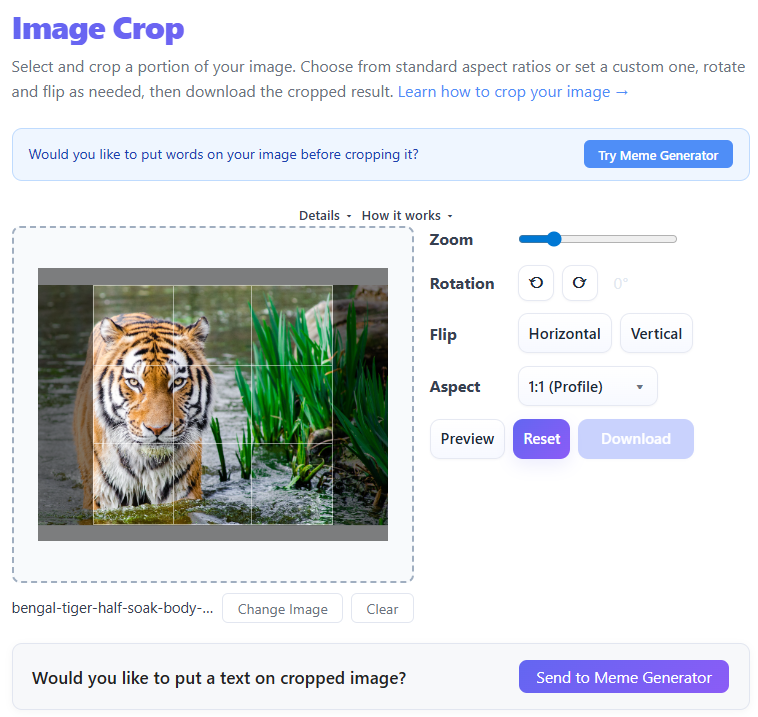
Load an image by dragging and dropping it onto the crop area, or click to browse your files.
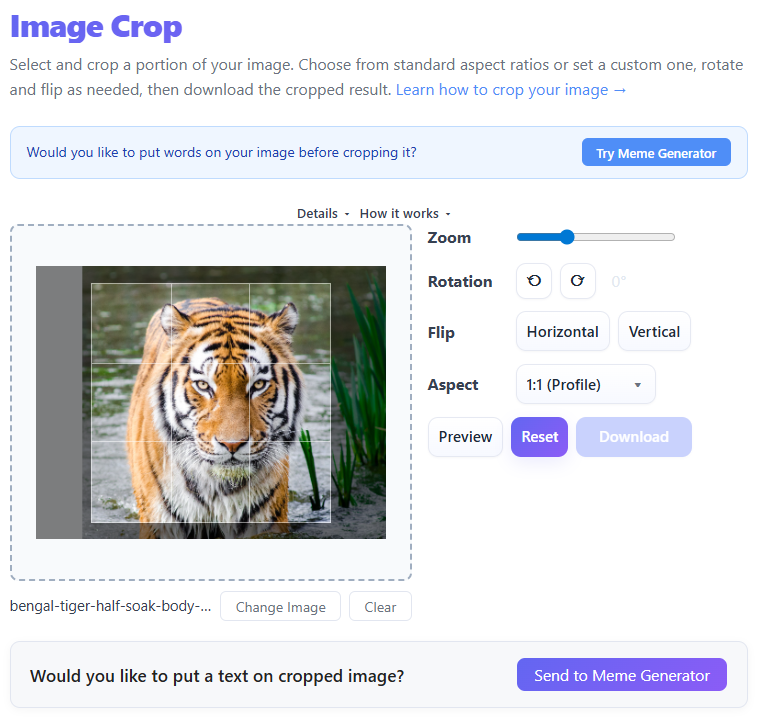
Drag and resize the crop overlay to select the region you want to keep. Choose an aspect ratio preset or use Free mode.
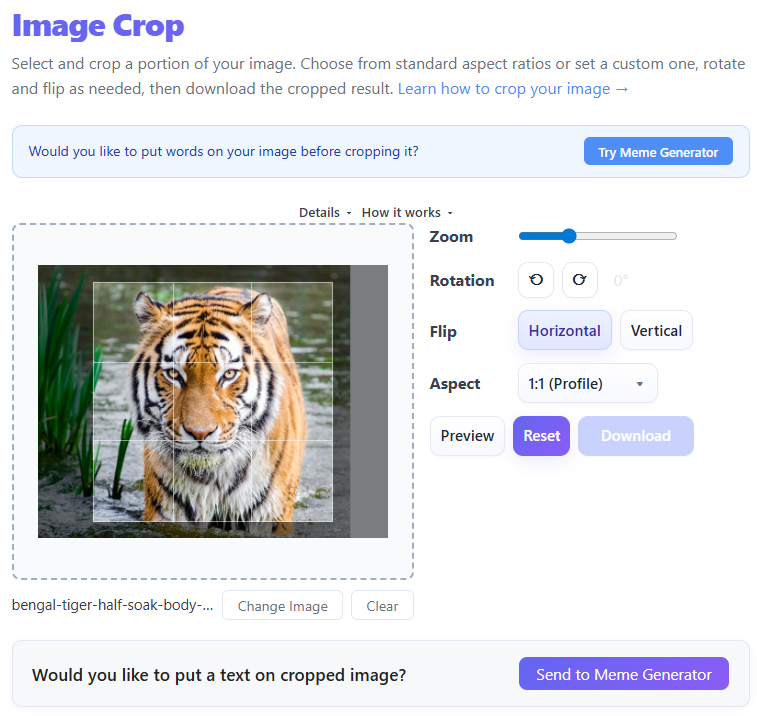
Optionally adjust zoom, rotation, and flip to fine-tune the framing before cropping.
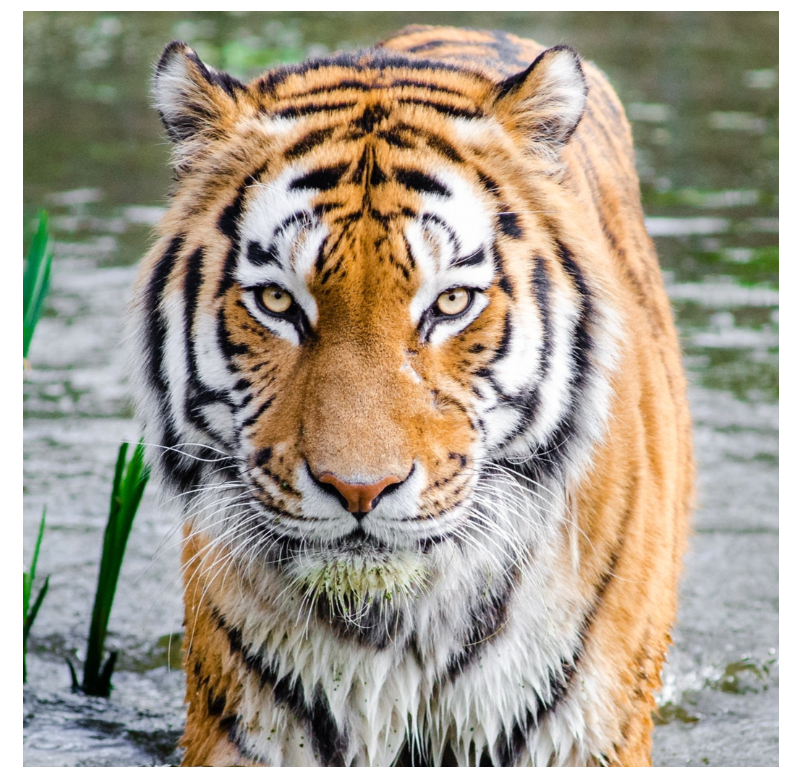
Click Preview to generate the cropped image and inspect the result in the preview dialog.
Click Download to save the cropped PNG to your device.
How to Crop Images Perfectly (Without Losing Quality or Composition)
Cropping an image is one of the simplest edits you can make — but it has a huge impact on how your image looks and communicates.
- How image cropping works
- When to use it
- How to crop properly without ruining quality
What Is Image Cropping?
Image cropping is the process of removing unwanted outer areas of an image to improve composition or adjust size. Instead of resizing the entire image, cropping lets you cut out unnecessary parts, focus on the subject, and change the aspect ratio.
Think of it as framing your image after it's already taken.
Why Cropping Matters
Focus on the Subject — Cropping removes distractions and highlights the most important part of the image.
Improve Composition — Use cropping to balance the image, apply the rule of thirds, and create a cleaner layout.
Fit Platform Requirements — Different platforms need different sizes; crop to square, vertical, or landscape to avoid distortion.
Cropping vs Resizing
| Feature | Cropping | Resizing |
|---|---|---|
| What it does | Removes part of image | Scales entire image |
| Keeps full content | No | Yes |
| Changes composition | Yes | No |
| Use case | Focus / framing | File size / dimensions |
Best practice: Crop first → then resize if needed.
Best Practices for Cropping
Keep the Subject Clear — Ensure the main subject is centered or well-positioned and not cut awkwardly.
Maintain Aspect Ratio — Use fixed ratios (1:1, 16:9, 4:5) when targeting specific platforms.
Don't Crop Too Much — Excessive cropping reduces resolution and may make images blurry.
Leave Breathing Space — Avoid tight crops—leave slight spacing around the subject for a natural look.
Keep the Original — Always save the original image; cropped areas cannot be recovered.
Common Mistakes to Avoid
Step-by-Step: How to Crop an Image
- Upload your image
- Select the area you want to keep
- Adjust the crop box (drag edges)
- Choose aspect ratio (optional)
- Apply crop
- Download the final image
Real Use Cases
📱 Social Media Posts — Crop to square or vertical to improve engagement.
🌐 Website Images — Remove unnecessary space and make images consistent across pages.
👤 Profile Pictures — Crop tightly around the face and center for better visibility.
🛍️ Product Images — Remove background clutter and highlight the product clearly.
Technical Architecture & Local Processing
Our Image Crop tool uses client-side HTML5 Canvas API and pixel coordinate bounding boxes (x, y, w, h) to perform cropping. Non-destructive transforms (rotation from 0° to 360°, zoom scaling, horizontal/vertical flipping) are calculated in memory before rasterizing to an output canvas via drawImage().
Why Zero-Server Processing Matters
By processing images strictly inside your browser's V8 engine RAM, your uncropped source files are never uploaded to remote cloud servers. This guarantees 100% privacy for confidential photos and sensitive documents.
Aspect Ratio & Social Platform Specifications
| Platform / Use Case | Aspect Ratio | Recommended Dimensions | Design Considerations |
|---|---|---|---|
| Instagram / Profile | 1:1 Square | 1080 x 1080 px | Keep essential focal points centered for circle avatars. |
| Instagram Stories / TikTok | 9:16 Portrait | 1080 x 1920 px | Leave top/bottom vertical space for UI overlays. |
| YouTube / Web Video | 16:9 Widescreen | 1920 x 1080 px | Standard landscape ratio for thumbnails and desktop banners. |
| Twitter / Web Banners | 3:1 or 4:1 Landscape | 1500 x 500 px | Ultra-wide orientation requiring clear horizontal focal balance. |
Frequently Asked Questions (FAQ)
Does cropping an image reduce its PPI / DPI resolution?
Cropping removes pixel columns and rows from the bitmap grid (W × H), which reduces total pixel count and physical output dimensions. However, the pixel density (PPI/DPI metadata) remains unchanged.
How does the tool handle EXIF camera orientation tags?
Modern browsers automatically auto-orient JPEG images based on EXIF metadata. Our canvas pipeline respects EXIF orientation prior to coordinate translation and scaling.
What is the difference between destructive canvas cropping and CSS cropping?
CSS cropping hides overflowing pixels visually using overflow: hidden or object-fit: cover without shrinking file size. Canvas cropping permanently trims excess bitmap data to reduce memory usage and output payload.
Can I crop high-resolution 4K or 8K images without memory crashes?
Yes. HTML5 Canvas supports large allocations (typically up to 16,384 × 16,384 pixels on modern GPUs/browsers). Local RAM handles rasterization without network payload bottlenecks.
Why does my cropped PNG file size increase compared to the original JPEG?
PNG uses lossless DEFLATE compression, whereas JPEG uses lossy discrete cosine transform (DCT). Converting lossy JPEGs to lossless PNGs preserves crisp line edges but can increase raw byte count.
Does local client-side cropping expose my photos to external servers?
No. All pixel operations occur strictly within client browser memory. No network traffic or background API calls are dispatched during cropping.
How do zoom and rotation math affect crop precision?
Zoom scales the source image coordinate matrix, while rotation applies trigonometric transformation matrices (cos θ, sin θ). Crop bounding box selection operates on transformed coordinates to yield pixel-perfect exports.
Which image formats can be exported after cropping?
The tool currently exports trimmed graphics as high-quality lossless PNG files, maintaining full transparency and pixel fidelity.
Conclusion
Image cropping is a simple but powerful way to improve composition, highlight important content, and make images fit any platform. Use the right techniques to turn an average image into a clean, professional-looking one.
Try the Image Crop Tool →