Meme Generator
Create fun memes by adding custom text to any image. Drag text anywhere on the canvas, adjust font size and color, then download your finished meme with one click. Works on both still images and animated GIFs. Learn how to use the Meme Generator →
What is a Meme Generator
A meme generator is a lightweight creative editor that lets you place text overlays on images to produce humorous, informative, or expressive graphics quickly. It supports multiple text layers, free positioning, font sizing, color selection, and simple export controls so you can craft a share-ready image in seconds.
How the generator works
Upload or drop an image into the canvas area, then add one or more text layers using the controls. Each layer can be positioned by dragging, resized via the advanced controls, and styled with a color picker. The preview area reflects changes in real time.
Why use a browser-based tool
Browser-based meme editors are instant and accessible: they don't require installations, run offline once loaded, and keep your images local to your device.
Tips for better memes
- Use short, punchy captions and capitalize text for classic meme styles.
- Keep good contrast between text and background; add stroke or shadow if needed for readability.
- Use multiple layers for complex layouts—title, subtitle, or small annotations all work well.
Accessibility & privacy
Controls are designed with accessibility in mind (large targets, keyboard support). Since composition occurs locally, your images are not transmitted off your device by default — they only leave the browser if you choose to upload or share them.
FAQs
- Q: Will my image be uploaded anywhere? A: No — everything runs client-side in your browser.
- Q: Can I add more than two text lines? A: Yes — use the + button to add as many text layers as you need.
- Q: What image formats are supported? A: Any image format your browser supports (JPEG, PNG, WebP, GIF, etc.).
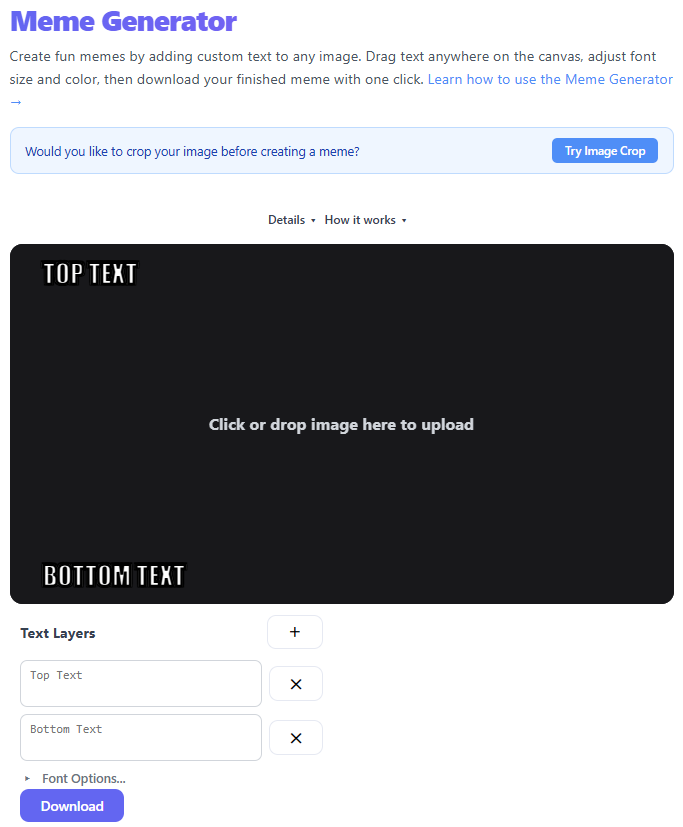
Upload an image by clicking the canvas area or dragging and dropping a file onto it.
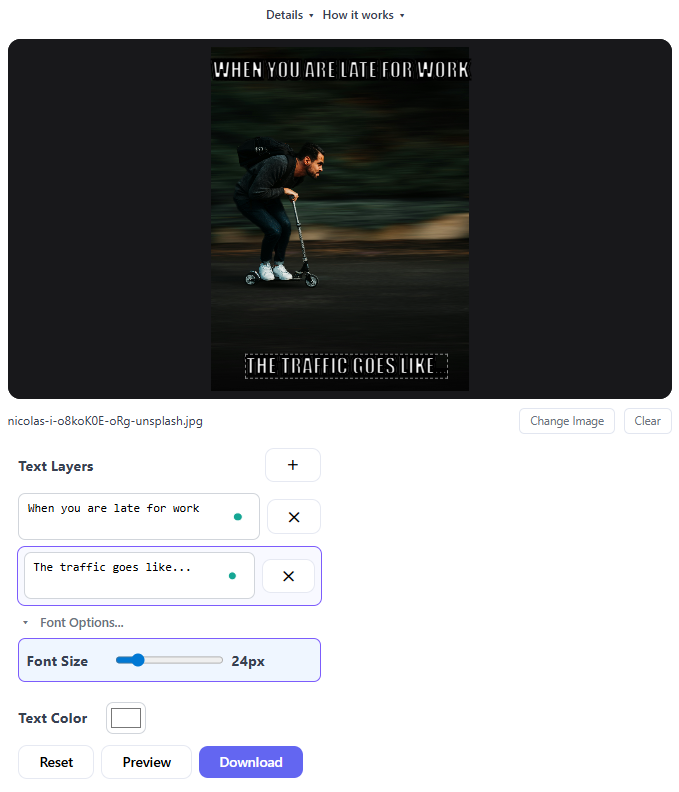
Click the + button to add a text layer and type your caption in the text box on the left panel.
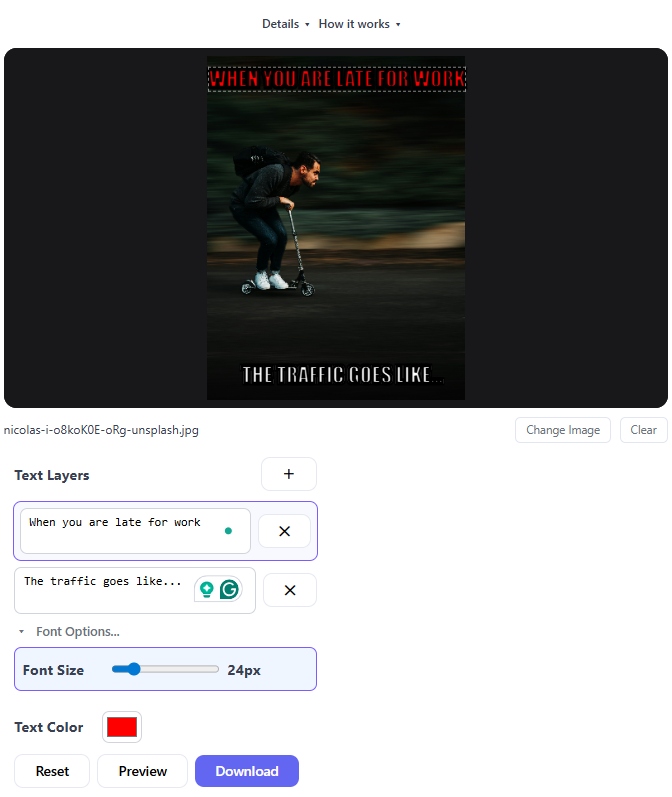
Drag the text overlay on the canvas to position it. Use the Advanced section to adjust font size and color.
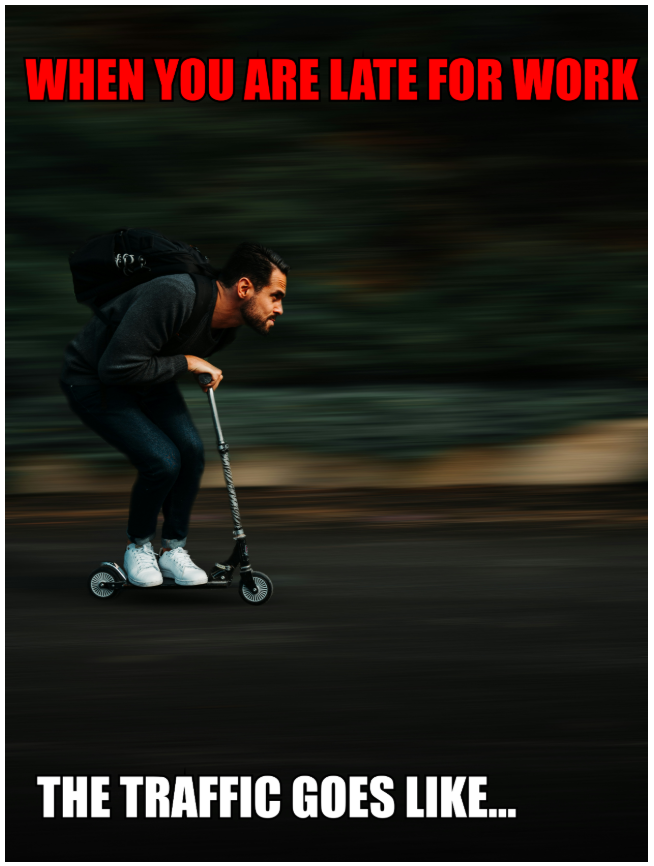
Add more text layers as needed, then click Download to save your meme as a PNG.
How to Create Memes That Actually Go Viral (Simple Guide for Beginners)
Memes are everywhere. From social media feeds to group chats, memes have become one of the fastest ways to communicate ideas, humor, and opinions.
But creating a meme that people actually share? That’s a different story.
In this guide, you’ll learn:
- What makes a meme work
- How to create one from scratch
- Common mistakes to avoid
- Tips to make your memes more engaging
What Is a Meme (Really)?
A meme is a piece of content — usually an image with text — designed to be shared and adapted by others. Unlike regular images, memes are relatable, quick to understand, and easy to share.
Why Memes Are So Popular
- Instant Communication — Memes compress ideas into one image and a few words, faster than paragraphs.
- Relatability — The best memes make people think "That's exactly me."
- Shareability — Memes are designed to be reposted and modified.
- Low Effort, High Impact — You don't need design skills or expensive tools; just a good idea.
Anatomy of a Good Meme
- Image: Recognizable or expressive, supports the message.
- Text: Short and clear, easy to read.
- Punchline: The twist or humor that makes people share.
Types of Memes You Can Create
- 😂 Relatable Memes — everyday situations
- 🔥 Trend-Based Memes — use current formats
- 💼 Niche Memes — target specific audiences
- 🧠 Informational Memes — mix humor with useful info
Best Practices
- Keep text short — 2–3 seconds to read.
- Use clear, bold fonts with high contrast.
- Match text to image so it reinforces the message.
- Stay relevant — trending formats perform better.
- Know your audience and tailor the humor.
Common Mistakes to Avoid
- Too much text
- Unclear message
- Using outdated formats
- Low-quality images
- Trying too hard to be funny
Step-by-Step: How to Create a Meme
- Upload or choose an image
- Add top and/or bottom text
- Adjust font size and position
- Preview your meme
- Download and share
Real-World Use Cases
- 📱 Social Media Content — boost engagement
- 💼 Marketing — make brands feel human
- 🧑💻 Developer Humor — build community
- 👥 Group Chats — react faster than typing
Tips to Make Your Memes Stand Out
- Use unexpected twists
- Combine two ideas creatively
- Keep it simple but clever
- Test different variations
Technical Architecture & Client-Side Canvas Mechanics
Our Meme Generator relies on client-side HTML5 Canvas API rendering for crisp text overlays. Captions are composited using fillText() for solid fills and strokeText() with a 2px+ black border outline to guarantee high contrast across varied background colors. For animated GIFs, WebAssembly binary buffers parse frames frame-by-frame entirely inside browser RAM.
Client-Side Privacy & Instant Export
Because text rasterization and binary encoding occur strictly inside local JavaScript memory, source images and video frames are never transmitted to external cloud servers. Downloads use toBlob() and Data URLs for instant, private file generation.
Meme Format & Canvas Specification Table
| Meme Format / Type | Recommended Canvas Dimensions | Typical Font & Styling | Best Output Format |
|---|---|---|---|
| Classic Top/Bottom Text | 1080 x 1080 px (1:1) | Impact / Bold Sans, White text with 2px Black Stroke | JPEG or WebP |
| Header Block (Twitter / Reddit) | 1200 x 675 px (16:9) | Arial / Helvetica, Black text on White padding | PNG or WebP |
| Animated GIF Meme | Original Ratio (480p / 720p) | Custom Canvas Overlay with Frame Delay Sync | Animated GIF |
| Side-by-Side Reaction | 1200 x 600 px (2:1) | System Sans-Serif, Dynamic placement | JPEG or PNG |
Meme Generator vs Image Editor
| Feature | Meme Generator | Image Editor |
|---|---|---|
| Purpose | Quick meme creation | General editing |
| Speed | Fast | Slower |
| Ease of use | Very easy | Moderate |
| Focus | Text + image | Full customization |
Frequently Asked Questions (FAQ)
How does stroke outline width prevent text from disappearing on multi-colored image backgrounds?
By rendering strokeText() with a dark outline (e.g. black) prior to executing fillText() with light text (e.g. white), a high-contrast boundary surrounds every character. This ensures legibility regardless of background brightness.
How does the browser handle animated GIF frame-rate delays during canvas text composite rendering?
Our GIF encoder decodes raw byte buffers into individual RGBA frame arrays. It composites canvas text layers onto each frame buffer while preserving original EXIF frame delay parameters during re-encoding.
What is the maximum canvas memory buffer available on mobile browsers before memory limits throttle export?
iOS Safari limits individual canvas allocations to roughly 16 MP (e.g. 4096 × 4096 pixels or 288 MB RAM). Keeping meme dimensions under 2048 × 2048 px guarantees smooth multi-frame rendering.
How do custom font files load via Web Font API before binding to the canvas context?
Fonts load asynchronously using CSS or document.fonts.load(). Once resolved in the DOM font set, calling ctx.font = '30px Impact'` correctly measures and draws text glyphs.
Can I export memes with transparent alpha channels using PNG format?
Yes. PNG format supports 8-bit alpha channels. If your source image contains transparent regions or padding, the exported canvas retains full transparency.
Do I need design or photo editing skills to create memes?
No — our tool automates layout scaling, font ratios, and text stroke boundaries so you can focus entirely on punchy captions.
Can I use custom image uploads or GIF URLs?
Yes, you can drag and drop any local JPEG, PNG, WebP, or animated GIF file directly into the browser workspace.
Are my images or generated memes sent to cloud servers?
No. All canvas rendering, image compositing, and file exports occur 100% locally in your browser RAM.
Conclusion
Creating memes isn't about complex design — it's about communication and timing. Focus on clear ideas, simple text, and relatability.
Try making your own here: