Image Converter — Convert Images Between Formats in Your Browser (JPG, PNG, WebP, AVIF, BMP, GIF, ICO)
A complete guide to the Image Converter on THRJ. This article explains how to convert images between formats, preserve transparency, create ICO favicon files, and choose the right format for every use case — all without uploading your files to a server. Open the Image Converter
Why Image Format Matters
Every image format was designed for a different purpose, and choosing the wrong one can mean bloated file sizes, lost transparency, or degraded quality. Understanding the trade-offs helps you pick the right format every time:
- JPEG (JPG): Best for photos and complex color gradients. Lossy compression produces small files, but repeated saves degrade quality. Does not support transparency.
- PNG: Lossless compression with full transparency support. Larger file sizes than JPEG, but ideal for screenshots, logos, icons, and any image where sharp edges and transparency matter.
- WebP: Google's modern format that beats both JPEG and PNG in file size at equivalent quality. Supports transparency and animation. Excellent for web pages.
- AVIF: Next-generation format with outstanding compression. Produces the smallest files at high quality, and supports transparency. Browser support is now mainstream as of 2024.
- BMP: Uncompressed bitmap format, generally much larger than other options. Used in some legacy Windows applications.
- GIF: 8-bit color with animation support. Largely superseded by WebP and APNG for animations, but still widely supported everywhere.
- ICO: Windows icon format, used for browser favicons and desktop icons. Contains one or more image sizes in a single file container.
Overview
Image Converter runs entirely in your browser — no uploads required. It decodes your image, draws it to an offscreen canvas, and exports to the selected target format. Supported outputs include JPG, PNG, WebP, AVIF, BMP, GIF, and ICO. TIFF is supported as an input format (decoded in-browser).
Quick steps
- Open the Image Converter page:
/image-converter. - Drag & drop an image or click to choose a file.
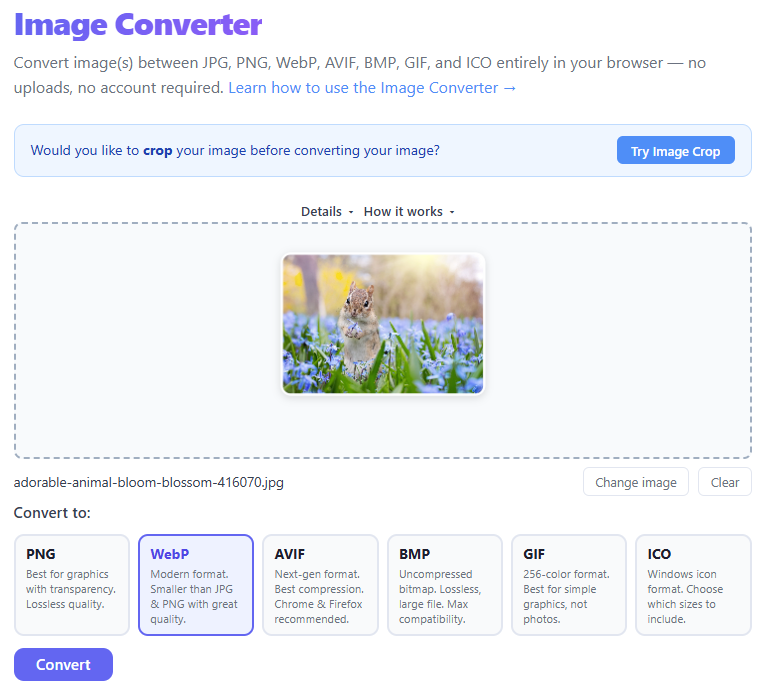
- Pick the output format from the buttons.
- (For ICO) choose the desired icon size and click Convert.
- Download the converted image using Download.
Step-by-step with screenshots
1. Upload an image
Drop a file onto the upload area or use the file picker. The tool auto-selects sensible defaults.
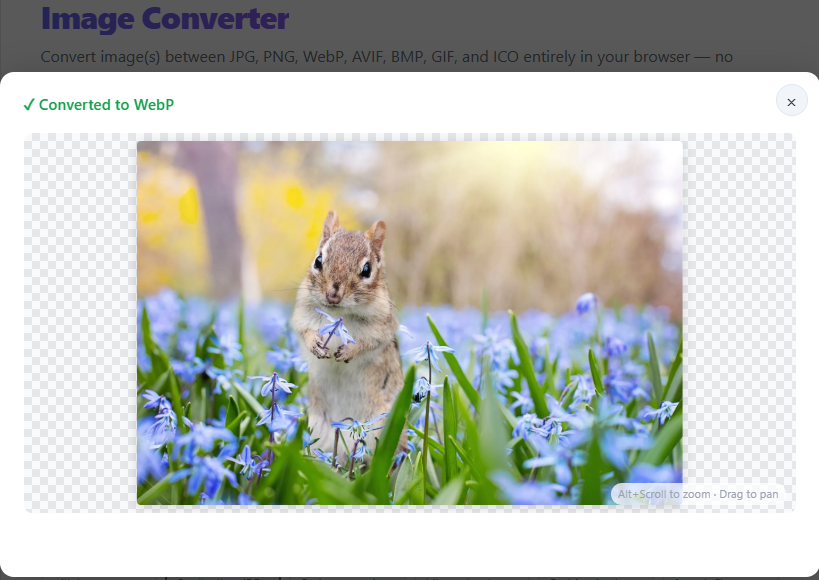
2. Choose a format and convert
Select the target format and click Convert. The preview shows the converted result and supports pan and zoom.
Tips
- Use PNG, WebP, or AVIF to preserve transparency.
- For photos, JPG or AVIF typically give the best size/quality trade-off.
- ICO exports create single-size icons; pick the size you need for favicons.
When to Convert — Practical Scenarios
Converting a screenshot PNG to JPEG: If you need to share a screenshot but the PNG is too large for email, converting to JPEG at 85% quality typically reduces the file by 60–75% with barely noticeable visual difference.
Converting a JPEG photo to WebP for a website: WebP files are typically 25–35% smaller than JPEG at equivalent quality. Switching to WebP can meaningfully improve page load speeds and Core Web Vitals scores, which matter for SEO.
Creating a favicon ICO: Browser favicons traditionally require ICO format with specific sizes (16×16, 32×32, 48×48). The converter lets you pick the size and export directly. For modern browsers, a 32×32 PNG also works but ICO provides better compatibility with older browsers.
Removing a white background: If you need transparency but have a JPEG (which cannot store transparency), you will need an editing tool to remove the background first, then export as PNG or WebP.
Format Comparison Table
| Format | Transparency | Animation | Lossless option | Typical use |
|---|---|---|---|---|
| JPEG | No | No | No | Photos, complex imagery |
| PNG | Yes | No | Yes | Screenshots, logos, icons |
| WebP | Yes | Yes | Yes | Web images (modern browsers) |
| AVIF | Yes | Yes | Yes | Web images (best compression) |
| GIF | 1-bit | Yes | Yes (256 colors) | Simple animations, icons |
| BMP | No | No | Yes | Legacy Windows apps |
| ICO | Yes | No | Yes | Favicons, desktop icons |
Privacy
All conversion happens locally in your browser; no files are uploaded to any server. This means you can safely convert sensitive or confidential images without worrying about data leaving your device.
Frequently Asked Questions
Why is my converted JPEG much larger than the original JPEG? The conversion process decodes the original JPEG into a raw pixel buffer and then re-encodes it. If the original was highly compressed, the re-encoded version at a higher quality setting will be larger. Adjust the quality slider downward to reduce file size.
Can I convert multiple images at once? Currently the tool processes one image at a time. For batch conversions, you can re-use the tool quickly by dragging the next image in after each conversion.
Why doesn't AVIF work in my browser? AVIF encoding requires browser support for the canvas.toBlob() API with AVIF. Most modern browsers support this, but older versions may not. Switch to WebP as a fallback if AVIF is unavailable.
Can I convert a PDF page to an image? The image converter handles image files. To convert PDF pages to images, use the PDF Converter on THRJ.
Published by THRJ Tech